Welcome to the future of workflow automation—where Azure Logic Apps empowers businesses to connect apps, data, and services across clouds with zero code. Discover how this powerful integration platform simplifies complex processes and boosts productivity.
What Are Azure Logic Apps?

Azure Logic Apps is a cloud-based service provided by Microsoft Azure that enables users to automate and orchestrate workflows by connecting various applications, data sources, APIs, and services. Whether you’re integrating SaaS platforms like Salesforce or automating internal business processes with on-premises systems, Logic Apps provides a visual designer and pre-built connectors to streamline development.




Core Concept of Workflow Automation
At its heart, Azure Logic Apps is built around the idea of workflow automation—defining a sequence of actions that are triggered by specific events. These workflows, known as ‘logic apps,’ run in the cloud and can be designed using a drag-and-drop interface, making them accessible even to non-developers.
- Workflows are event-driven: they start when a defined trigger occurs.
- Each step in the workflow performs an action, such as sending an email or updating a database.
- Logic Apps use a declarative language (JSON-based) called Workflow Definition Language (WDL) under the hood.
Visual Designer and Integration Capabilities
The Logic Apps Designer is a browser-based tool that allows users to build workflows visually. You can drag and drop triggers and actions from hundreds of built-in connectors, including Office 365, Dynamics 365, SQL Server, and more.
One of the standout features is its deep integration with Azure services like Azure Functions, Service Bus, and Event Grid. This makes it easy to extend workflows with custom code or respond to real-time events.
“Azure Logic Apps bridges the gap between disparate systems, enabling seamless data flow without writing a single line of code.” — Microsoft Azure Documentation
Key Features of Azure Logic Apps
Azure Logic Apps stands out in the integration landscape due to its rich feature set designed for scalability, reliability, and ease of use. From enterprise-grade connectors to monitoring tools, it’s built to handle complex integrations with minimal overhead.
Pre-Built Connectors and Templates
One of the biggest advantages of Azure Logic Apps is its extensive library of over 300 pre-built connectors. These connectors allow seamless integration with popular services such as:
- Salesforce
- Azure Blob Storage
- Google Sheets
- SAP
Additionally, Microsoft offers hundreds of ready-to-use templates for common scenarios like “When a new email arrives, save the attachment to OneDrive” or “Monitor Twitter for keywords and log results in Excel.” These templates accelerate development and reduce time-to-market.
Enterprise Integration Capabilities
For organizations dealing with B2B communication, Azure Logic Apps supports enterprise integration protocols like AS2, X12, EDIFACT, and RosettaNet through the Integration Account feature. This makes it ideal for industries such as healthcare, finance, and logistics that rely on standardized message formats.
With support for XML, flat files, and EDI transformations, Logic Apps can parse, validate, and route messages across trading partners securely and reliably.
Monitoring and Diagnostics with Azure Monitor
Every logic app generates detailed runtime logs that can be viewed in the Azure portal. Using Azure Monitor and Log Analytics, teams can track execution history, identify failures, set up alerts, and gain insights into performance metrics.
You can also integrate Application Insights for advanced telemetry, allowing developers to monitor custom events, track dependencies, and analyze user behavior within workflows.
Azure Logic Apps vs. Other Integration Tools
While there are several integration platforms available—such as Azure Functions, Power Automate, and third-party tools like Zapier and MuleSoft—Azure Logic Apps occupies a unique space in the Microsoft ecosystem. Understanding how it compares helps organizations choose the right tool for their needs.
Logic Apps vs. Power Automate
Both Azure Logic Apps and Power Automate (formerly Microsoft Flow) offer workflow automation, but they serve different audiences and use cases.
- Power Automate is geared toward citizen developers and business users who want to automate simple tasks across Microsoft 365 and common SaaS apps.
- Azure Logic Apps is designed for professional developers and IT teams building complex, scalable, and mission-critical integrations in the cloud.
While Power Automate runs on a per-user licensing model, Logic Apps is billed based on consumption (actions, connectors, and execution duration), making it more cost-effective for high-volume scenarios.
Logic Apps vs. Azure Functions
Azure Functions is a serverless compute service that runs small pieces of code (functions) in response to events. While both services can be triggered by HTTP requests or timers, their purposes differ significantly.
- Azure Logic Apps focuses on orchestrating workflows across multiple systems using connectors.
- Azure Functions is ideal for running custom code logic, such as data transformation or image processing.
In practice, these two services often work together—Logic Apps can call Azure Functions to execute custom logic within a workflow, combining the best of both worlds.
Comparison with Third-Party Tools (Zapier, MuleSoft)
Third-party integration platforms like Zapier and MuleSoft also offer automation capabilities, but they differ in scope and integration depth.
- Zapier is excellent for small businesses automating between web apps but lacks enterprise-grade security, monitoring, and hybrid connectivity.
- MuleSoft Anypoint Platform offers robust API management and integration but comes with higher complexity and cost.
In contrast, Azure Logic Apps integrates natively with the broader Azure ecosystem, supports hybrid scenarios via on-premises data gateways, and provides enterprise-level governance and compliance.
Use Cases for Azure Logic Apps
Azure Logic Apps is incredibly versatile and can be applied across various industries and departments. Below are some real-world use cases that demonstrate its power and flexibility.
Automating Business Processes
Organizations use Azure Logic Apps to automate repetitive business processes such as invoice processing, employee onboarding, and customer support ticket routing.
For example, when a new invoice arrives via email, a logic app can extract the attachment, parse the data using Azure Form Recognizer, validate it against a database, and then post it to an ERP system like SAP or Dynamics 365.
Data Integration Across Systems
Many enterprises have data scattered across cloud and on-premises systems. Azure Logic Apps acts as a bridge, synchronizing data between CRM, ERP, databases, and data warehouses.
A common scenario involves syncing customer data from Salesforce to an internal SQL Server database every hour. The logic app triggers on a schedule, retrieves updated records, transforms the data if needed, and inserts or updates them in the target system.
Real-Time Notifications and Alerts
Logic Apps can monitor systems for specific events and send instant notifications. For instance, if a server goes down, a logic app can detect the alert from Azure Monitor and automatically send SMS via Twilio, post a message in Microsoft Teams, and create a ticket in ServiceNow.
This kind of real-time response ensures faster incident resolution and improves operational efficiency.
How to Build Your First Azure Logic App
Creating your first logic app is straightforward, even if you’re new to Azure. Follow this step-by-step guide to get started with a simple workflow that sends an email when a new file is uploaded to Azure Blob Storage.
Step 1: Create a Logic App Resource
Log in to the Azure Portal, click ‘Create a resource,’ search for ‘Logic App,’ and select it. Fill in the required details such as name, subscription, resource group, and location. Choose the ‘Consumption’ pricing plan unless you need advanced features like VNET integration.
Step 2: Use the Logic Apps Designer
Once the resource is deployed, open it in the portal and choose ‘Logic App Designer.’ You’ll be prompted to select a trigger. Search for ‘Blob Storage’ and choose the trigger ‘When a blob is added or modified (properties only).’
Configure the connection to your Azure Storage account and specify the container path to monitor.
Step 3: Add Actions and Save
After setting up the trigger, click ‘+ New step’ and search for ‘Send an email (V2)’ under the Office 365 Outlook connector. Sign in to your account and fill in the email fields—subject, body, recipient.
You can include dynamic content from the blob trigger, such as the file name or URL. Finally, save the logic app. It will now run automatically whenever a new blob is uploaded.
Best Practices for Using Azure Logic Apps
To ensure your workflows are efficient, secure, and maintainable, follow these best practices when working with Azure Logic Apps.
Optimize Performance and Cost
Since Logic Apps are billed per action and connector usage, optimizing your workflows can significantly reduce costs.
- Minimize the number of actions by combining steps where possible.
- Use filters early in the workflow to avoid unnecessary processing.
- Leverage recurrence triggers efficiently—avoid overly frequent polling.
Consider using the ‘Split On’ feature wisely, as it can generate multiple runs from a single trigger, increasing costs if not managed properly.
Secure Your Workflows
Security is critical when dealing with sensitive data and external systems.
- Use managed identities instead of storing credentials in connections.
- Enable private endpoints to restrict access to your logic apps from public networks.
- Apply role-based access control (RBAC) to limit who can view or modify workflows.
Also, ensure that any data passed through workflows is encrypted in transit and at rest.
Implement Error Handling and Retry Policies
Not all actions succeed on the first try. Azure Logic Apps allows you to define retry policies for each action.
- Set appropriate retry intervals and limits based on the service being called.
- Use the ‘Scope’ action to group related operations and handle errors collectively.
- Implement dead-letter queues using Azure Service Bus to capture failed messages for later analysis.
Proper error handling ensures your workflows are resilient and don’t break due to transient issues.
Advanced Scenarios with Azure Logic Apps
While basic workflows are powerful, Azure Logic Apps truly shines in advanced integration scenarios involving custom code, hybrid environments, and complex routing.
Calling Azure Functions from Logic Apps
When a workflow requires custom logic that isn’t available through connectors, you can call an Azure Function directly from a logic app.
For example, if you need to process an image, validate JSON against a schema, or call a machine learning model, deploy that logic as a function and invoke it using the ‘Azure Function’ action in your workflow.
This hybrid approach combines the simplicity of Logic Apps with the flexibility of code.
Hybrid Integrations with On-Premises Data Gateway
Many organizations still rely on on-premises systems like SQL Server, SharePoint, or SAP. Azure Logic Apps can connect to these systems securely using the On-Premises Data Gateway.
The gateway acts as a bridge between the cloud and local networks, enabling secure data transfer without opening firewall ports. Once installed, you can use connectors like SQL Server or File System in your logic apps just like any cloud service.
Using Integration Accounts for B2B Workflows
For businesses exchanging EDI messages with partners, Integration Accounts provide a centralized place to manage artifacts like agreements, certificates, schemas, and maps.
You can create an Integration Account, upload X12 or EDIFACT schemas, define trading partner agreements, and use them in your logic apps to receive, validate, and transform EDI messages automatically.
Scaling and Managing Azure Logic Apps
As your automation needs grow, managing and scaling logic apps becomes crucial. Azure provides tools and strategies to help you maintain performance, monitor health, and deploy changes efficiently.
Choosing Between Consumption and Standard Plans
Azure Logic Apps offers two main hosting plans: Consumption and Standard.
- Consumption Plan: Best for event-driven, variable workloads. You pay only for what you use—actions, executions, and connector calls.
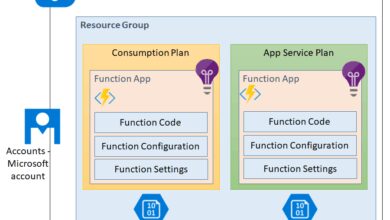
- Standard Plan: Runs on Azure App Service, offering more control, custom domains, VNET integration, and stateful workflows.
The Standard plan is ideal for long-running workflows, hybrid scenarios requiring private networking, or when you need to run logic apps in isolated environments.
Using DevOps and CI/CD Pipelines
To manage logic apps at scale, integrate them into your DevOps pipeline using tools like Azure DevOps, GitHub Actions, or ARM templates.
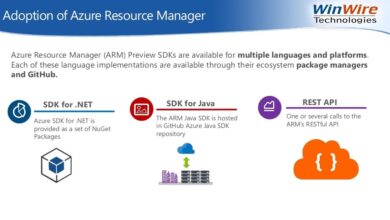
You can export logic app workflows as ARM (Azure Resource Manager) templates, store them in version control, and deploy them across development, testing, and production environments automatically.
This ensures consistency, enables rollback capabilities, and supports team collaboration.
Monitoring and Troubleshooting with Azure Monitor
Effective monitoring is essential for maintaining reliable workflows. Azure Monitor collects logs and metrics from your logic apps, which can be visualized using dashboards or queried with Kusto (KQL) in Log Analytics.
Set up alerts for failed runs, high latency, or throttling events. You can also use Application Insights to trace individual workflow instances and debug issues in real time.
What are Azure Logic Apps used for?
Azure Logic Apps is used to automate workflows by integrating apps, data, services, and systems across cloud and on-premises environments. Common uses include automating business processes, syncing data between systems, sending notifications, and handling B2B message exchanges.
How much does Azure Logic Apps cost?
Azure Logic Apps operates on a pay-per-use model in the Consumption plan, charging based on the number of actions, connector calls, and execution duration. The Standard plan is priced based on App Service plan costs. Detailed pricing can be found on the official Azure pricing page.
Can Azure Logic Apps connect to on-premises systems?
Yes, Azure Logic Apps can connect to on-premises systems like SQL Server, SharePoint, and SAP using the On-Premises Data Gateway. This allows secure data transfer between cloud workflows and local networks without exposing internal systems to the internet.
Is Azure Logic Apps the same as Power Automate?
No, while both tools offer workflow automation, Azure Logic Apps is designed for enterprise-grade, scalable integrations by developers, whereas Power Automate targets business users for simpler, departmental automations. Logic Apps offers deeper integration with Azure services and supports more complex scenarios.
How do I debug a failing logic app?
You can debug a failing logic app using the Azure portal’s Run History feature, which shows detailed logs for each execution. Use Azure Monitor and Application Insights for advanced diagnostics, including tracing inputs, outputs, and exceptions. Adding checkpoints with ‘Compose’ or ‘Log to Application Insights’ actions can also help isolate issues.
Azure Logic Apps is a transformative tool for organizations looking to streamline operations, integrate disparate systems, and automate complex workflows without writing extensive code. With its visual designer, vast connector library, and deep Azure integration, it empowers both developers and IT professionals to build scalable, reliable, and secure automation solutions. Whether you’re automating simple tasks or orchestrating enterprise-wide integrations, Azure Logic Apps provides the flexibility and power needed to succeed in today’s connected world. By following best practices in design, security, and monitoring, you can maximize its potential and drive digital transformation across your organization.
Recommended for you 👇
Further Reading: